Quick Overview
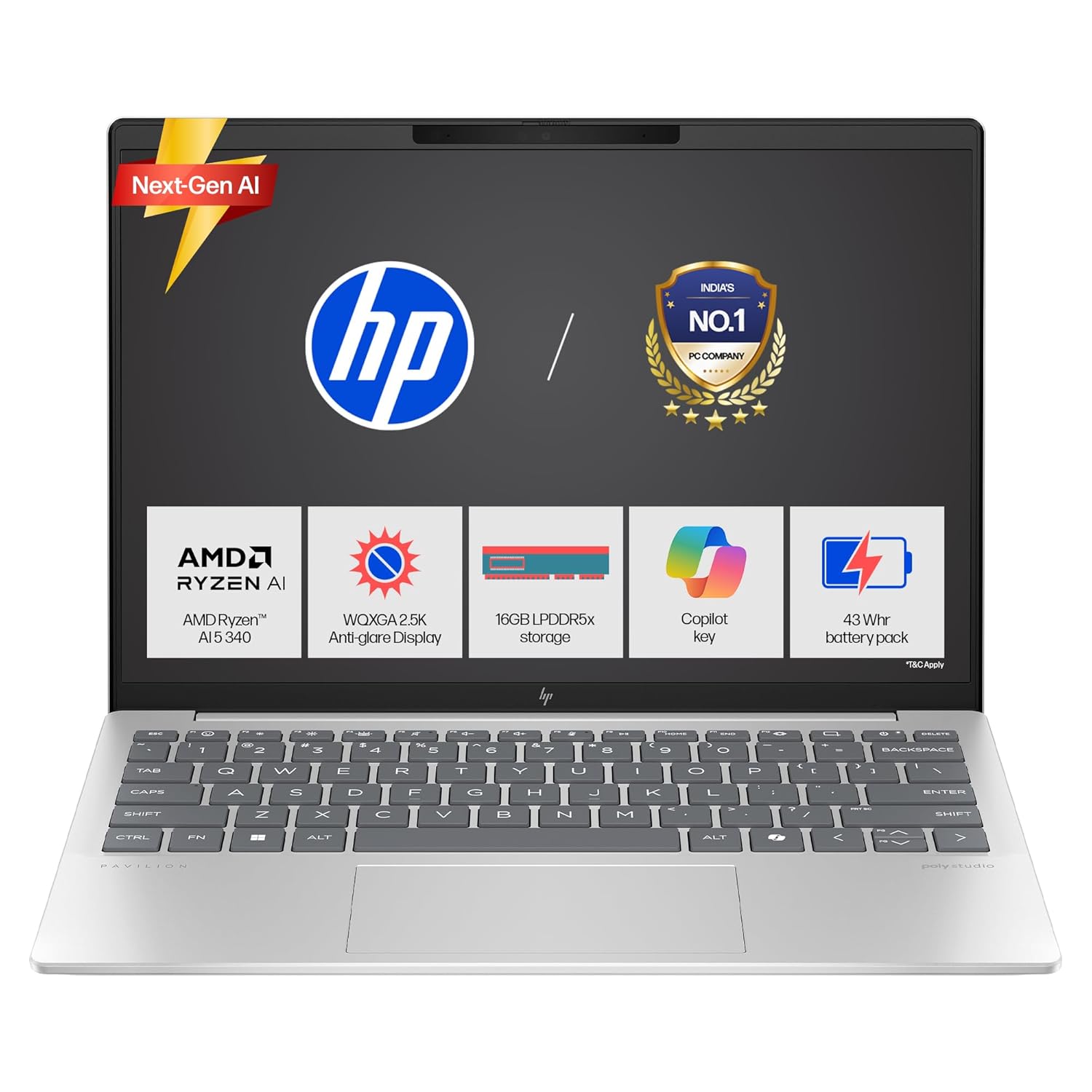
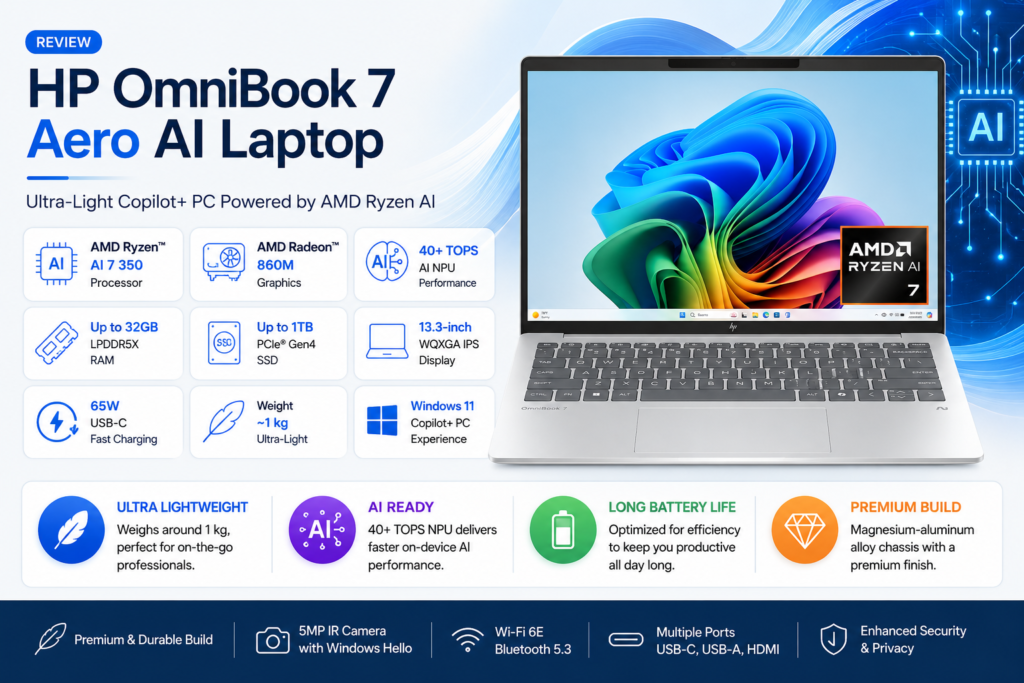
The HP OmniBook 7 Aero review is a 13.3-inch ultraportable Windows laptop built around one obsession: weight. At roughly 1 kg (about 2.2 lbs), it is one of the lightest AI-capable laptops on the market, built around a magnesium-aluminum alloy chassis that HP says uses recycled metals. It’s powered by AMD’s Ryzen AI 7 350 processor (with a Ryzen 5 340 option on lower-tier configurations), paired with Radeon 860M integrated graphics and an NPU rated above 40 TOPS, which qualifies it as a Microsoft Copilot+ PC.
Introduction
HP OmniBook 7 Aero review: AI laptops have moved from a marketing buzzword to a genuine hardware category over the past two years. Microsoft’s Copilot+ PC certification, which requires an NPU capable of at least 40 trillion operations per second (TOPS), has pushed nearly every major manufacturer to redesign their processors, and by extension their laptops, around on-device AI acceleration. The pitch is straightforward: instead of sending every AI request to the cloud, a Copilot+ PC can run tasks like background noise removal, live captioning, and image generation locally, which is often faster and keeps more of your data on the device.
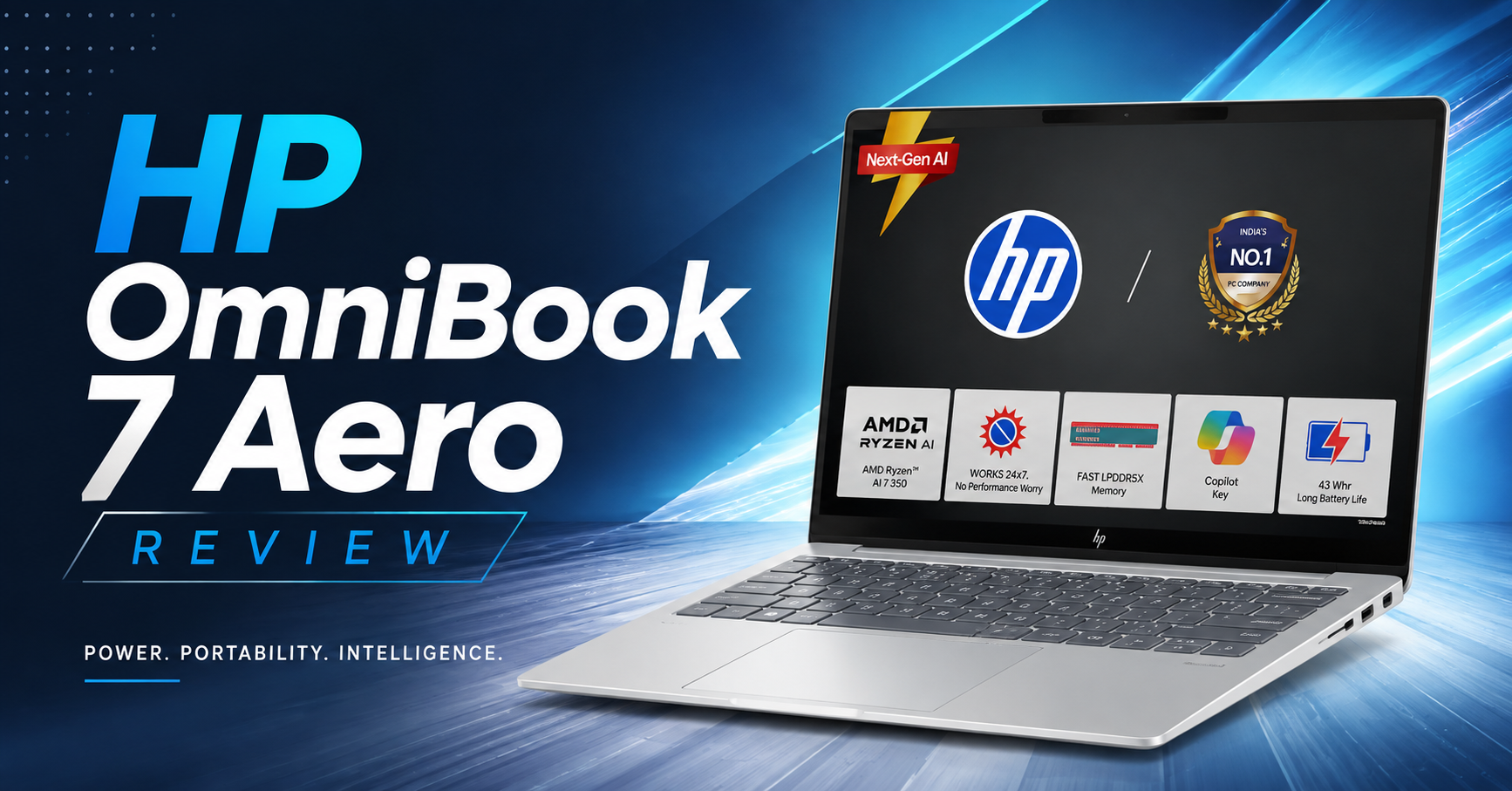
HP OmniBook 7 Aero review: Discover its ultra-light design, Ryzen AI performance, Copilot+ features, battery life, pros, cons, and whether it’s worth buying.
HP has leaned into this shift aggressively, and the OmniBook line is where that strategy is most visible. HP restructured its consumer and prosumer laptop naming in 2025, folding what used to be the Pavilion, Envy, and Spectre families into a single OmniBook hierarchy. At the top sits the OmniBook X, an ultra-premium line built around OLED displays. One step down is the OmniBook 7 family, which trades some of that display polish for a chassis explicitly designed around business use, longer-term durability, and in the case of the Aero variant specifically, extreme portability.
The OmniBook 7 Aero is, in effect, HP’s answer to the “how light can a real laptop get” question that Asus and others have also been asking with ultra-light 13-inch designs. What makes it different from a typical thin-and-light isn’t just the number on the scale: it’s that HP paired that weight target with a genuinely capable processor rather than a low-power chip that would have made the battery-life numbers look better on paper. That trade-off, as we’ll see throughout this review, defines almost everything about how the Aero behaves in daily use.
1. Design and Build Quality
The headline number is the weight: under 2.2 pounds, depending on configuration. That undercuts even Apple’s MacBook Air 13, which weighs about 2.7 pounds, and it puts the Aero in rarefied company among 13-inch Windows laptops that still include a full array of ports and a comfortable-sized keyboard.
HP didn’t get there by using cheap plastic. The chassis is a magnesium-aluminum alloy that multiple reviewers describe as feeling premium and slightly rubberized to the touch, rather than the slick, fingerprint-magnet aluminum you find on some ultralights. HP markets the OmniBook 7 line as using recycled metals and post-consumer recycled plastics, and the line carries EPEAT Gold and ENERGY STAR certifications, which matters if your organization has sustainability procurement requirements.
That said, ultra-light construction is a real engineering trade-off, and reviewers have noted it. The lid and keyboard deck show some flex under pressure, more than you’d find on a heavier subnotebook like a Dell XPS 13 or an HP Spectre. This is a pattern common to essentially every laptop in the sub-1kg category, including rivals like the LG Gram and Asus Zenbook S 13, so it isn’t unique to HP, but it’s worth knowing before you buy if rigidity is a priority for you.
The hinge feels solid without excessive resistance, and the laptop is available in two colorways: Ceramic White and Glacier Silver. The white version, with its matching white keyboard deck and black display bezel, has drawn particular praise for standing out in a market saturated with silver and space-gray laptops.
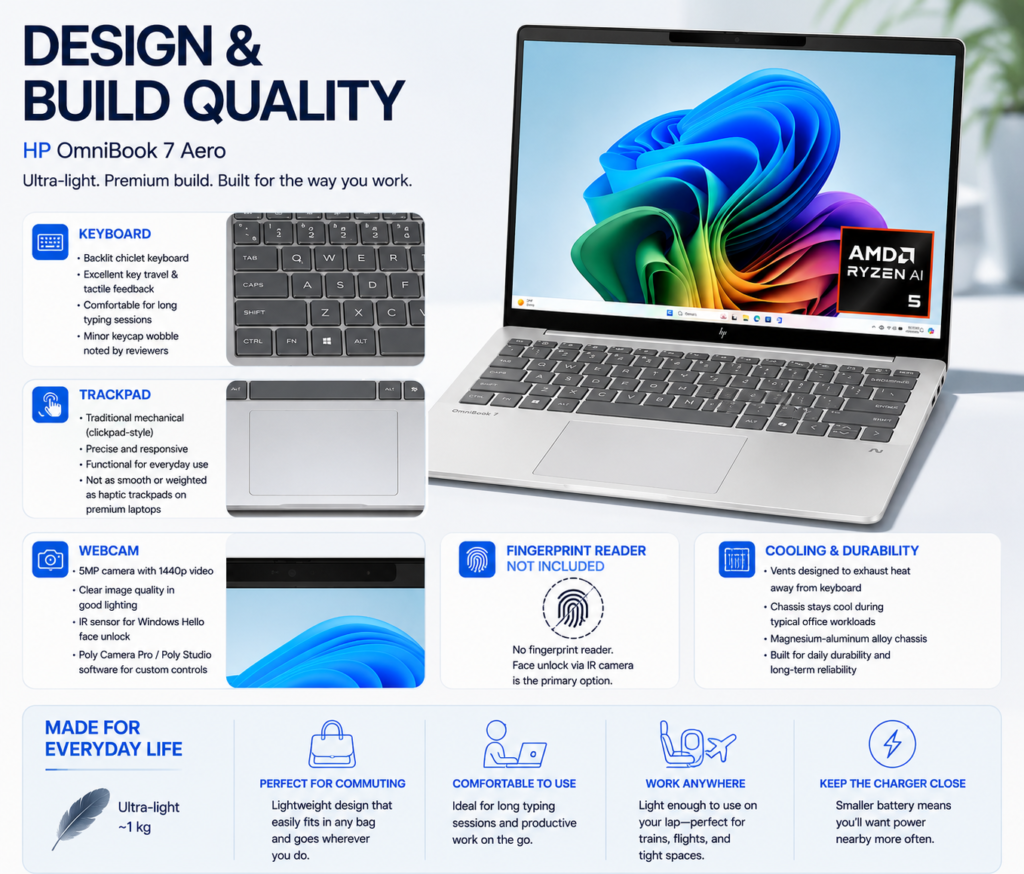
Keyboard: The Aero uses a backlit chiclet keyboard, and it’s widely regarded as one of the better keyboards in the ultralight category. HP has clearly prioritized key travel and tactile feedback rather than shaving the keyboard down purely to save height. One reviewer noted a faint wobble in the keycaps, which is a minor complaint but worth flagging if you’re picky about keyboard feel.
Trackpad: The Aero uses a traditional mechanical (clickpad-style) trackpad rather than the haptic, glass-surfaced trackpads found on premium competitors like the MacBook Air or Dell XPS 13. It’s functional and precise enough for everyday use, but it doesn’t have the same smooth, weighted click you’d find on higher-end machines.
Webcam: A 5-megapixel sensor capable of 1440p video, which is a genuine step up from the 1080p webcams still common on many laptops. Image quality is strong in good lighting but gets grainy in dim rooms, a limitation shared by most laptop webcams regardless of resolution. The camera module also includes an IR sensor for Windows Hello facial recognition, and HP bundles its Poly Camera Pro / Poly Studio software for adjusting camera behavior across different video-calling apps.
Fingerprint reader: Notably absent. If you prefer fingerprint login over face unlock for instance, if you frequently wear a mask or work in variable lighting that’s a gap worth knowing about upfront.
Cooling vents and durability: The vents are positioned to exhaust heat away from the keyboard during typing, and daily-use testing generally reports the chassis staying cool under typical office workloads (more on sustained-load thermals in the Heat and Noise section below, where test results are more mixed).
Living with it day to day: For commuting, the Aero genuinely disappears into a bag in a way heavier ultraportables don’t. Reviewers who tested it for extended writing sessions found it comfortable for long typing stretches, and its light weight makes it one of the few laptops that’s realistically usable balanced on your knee on a train or in economy-class seating. The trade-off, as covered below, is that you’ll want to keep the charger within reach more often than you would with a MacBook Air or a Snapdragon-powered competitor.
2. Display Review
This is one area where the Aero’s specifications aren’t entirely settled across configurations and reviews, and it’s worth being upfront about that rather than picking one number and presenting it as universal.
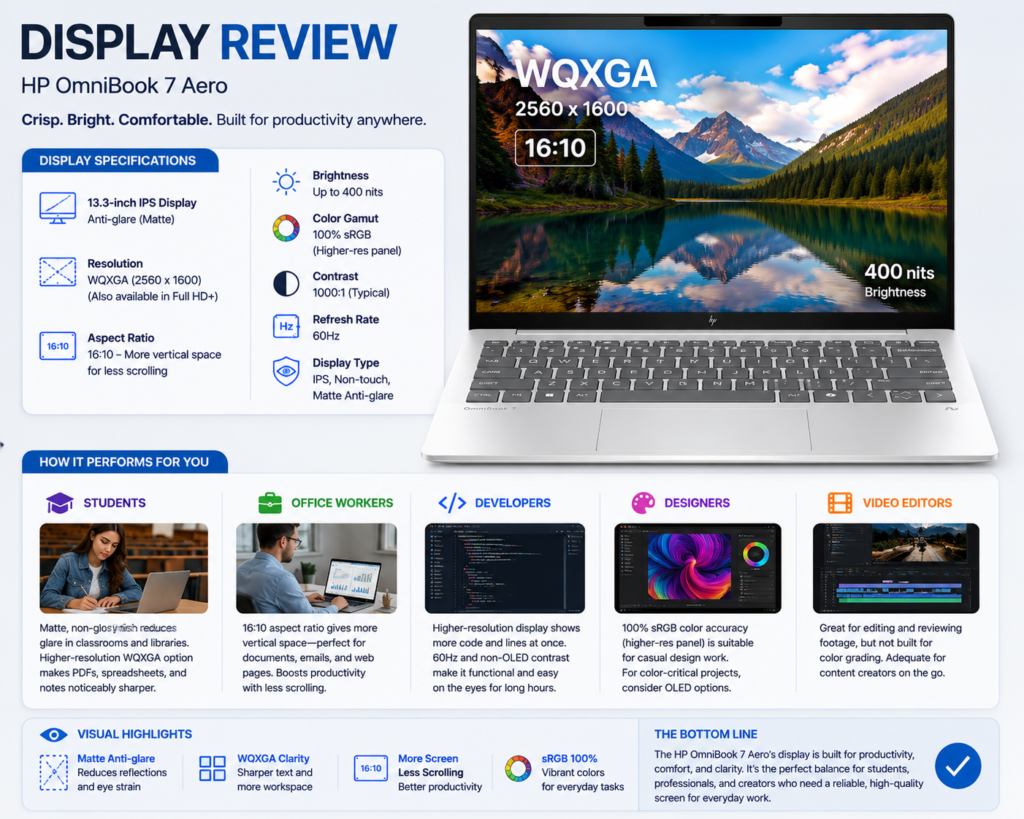
HP sells the OmniBook 7 Aero with more than one display option. Some test units, including the configuration Notebookcheck reviewed, used a 1920×1200 (16:10) IPS panel. Other coverage, including a hands-on review from Techaeris, describes a sharper 2560×1600 WQXGA IPS panel that reportedly covers the full sRGB gamut.
A separate report notes that a 1920×1200 version is offered as a lower-cost alternative to the higher-resolution panel, which suggests the WQXGA panel may be the more common “standard” option, with the lower-resolution screen positioned as a budget trim. Given the conflicting first-hand reports, treat the exact panel in any specific unit you’re considering as configuration-dependent, and check the exact SKU before purchase if display resolution matters to you.
What’s consistent across every review: this is a 60Hz panel with a non-glossy, matte-ish finish, and it is IPS rather than OLED. Brightness has not been independently verified in this research and should be confirmed for your specific configuration before assuming it will hold up well outdoors.
Color accuracy is reported as good enough for general creative work and casual photo editing but not competitive with the OLED panels used in HP’s own OmniBook X line or in rivals like the Dell XPS 13 OLED or Lenovo Yoga Slim 7i.
Refresh rate is a flat 60Hz across configurations there’s no high-refresh option here, which is a fair trade-off for a laptop this light and this battery-constrained, but it does mean the Aero isn’t a candidate if smooth scrolling or light gaming responsiveness matters to you.
How the Display Serves Different Users
- Students: The matte, non-glossy finish is genuinely useful in lecture halls and libraries with harsh overhead lighting, and the higher-resolution WQXGA option (where available) makes dense reading material PDFs, spreadsheets, code noticeably crisper.
- Office workers: The 16:10 aspect ratio gives more vertical space than a typical 16:9 laptop screen, which is a genuine ergonomic upgrade for reading documents and browsing web pages without as much scrolling.
- Developers: The higher-resolution configuration will render more code on screen at once, though the 60Hz refresh and non-OLED contrast mean it’s a functional rather than exceptional coding display.
- Designers: Full sRGB coverage (on the higher-res panel) is a reasonable floor for casual design work, but professionals doing color-critical work should look toward the OLED-equipped OmniBook X or dedicated creator laptops instead.
- Video editors: This isn’t a laptop built for color-graded video work. It’s adequate for editing and reviewing footage, not for final color decisions.
3. Performance Review
Processor Performance
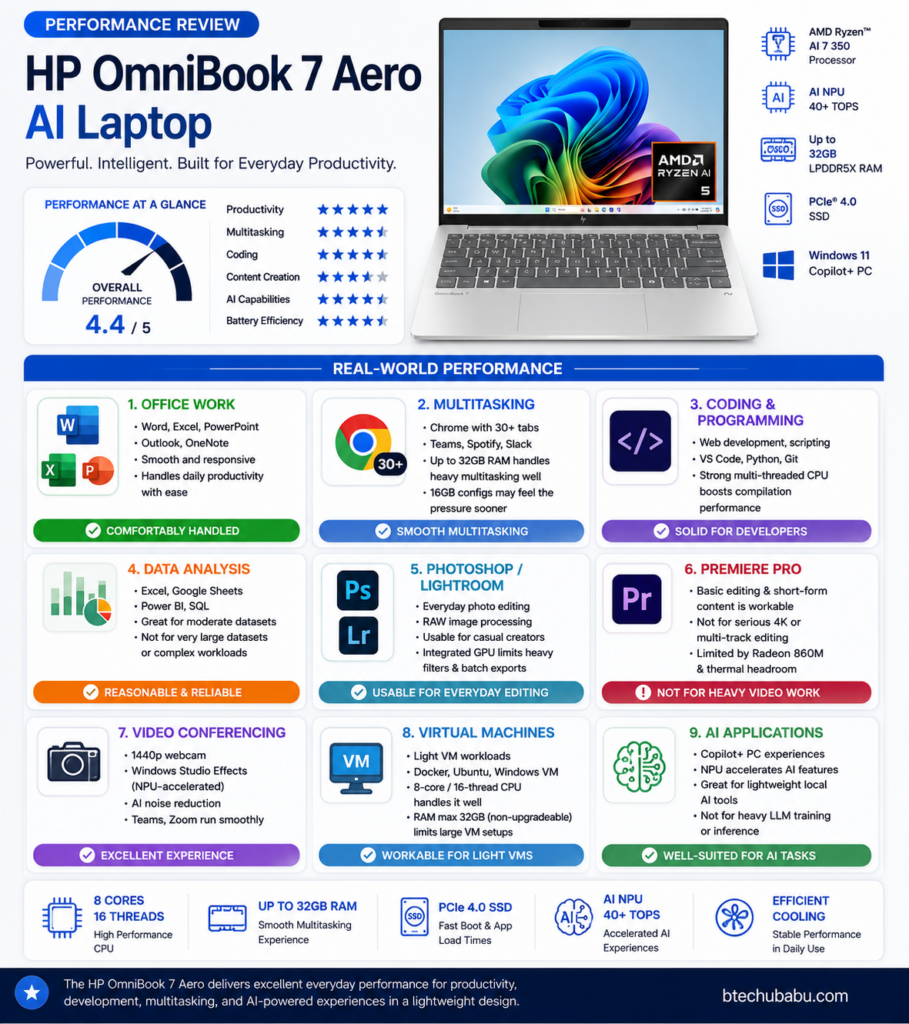
The Ryzen AI 7 350 is built on AMD’s Krackan Point architecture, combining four full-performance Zen 5 cores (up to 5.0GHz boost) with four efficiency-focused Zen 5c cores, for eight cores and sixteen threads total. Independent testing describes this as a genuinely strong performer for its size class, particularly in multi-threaded workloads, and testing from PCWorld found it outpacing Intel’s Lunar Lake-based competitors on CPU-bound tasks, though Lunar Lake tends to win back ground on battery efficiency, which matters given the Aero’s smaller battery.
Power limits reported for the review configuration were a 40W short-burst boost (PL2) and a 32W sustained limit (PL1), numbers that are respectable but not aggressive for a chip in this class, consistent with HP prioritizing quiet, cool operation over maximum sustained clock speeds.
GPU Performance
The integrated Radeon 860M is the same GPU tier found across much of AMD’s current mobile lineup, and it performs roughly as expected for integrated graphics: fine for everyday tasks, video playback, and light photo work, but a clear weak point if you push it. In PCWorld’s 3DMark Time Spy benchmark, the Aero scored 2,726, about half the performance of Intel’s Lunar Lake integrated GPUs in the same test. If graphics performance is a priority, this is not the laptop for you.
AI NPU Performance
The Aero’s NPU is rated above 40 TOPS, clearing Microsoft’s threshold for Copilot+ certification with room to spare. One secondary source (not an HP-published figure) cites a specific 50 TOPS rating; because that number comes from a single unverified secondary report rather than HP’s own materials, treat it as an estimate rather than a confirmed spec.
In practice, the NPU handles on-device AI acceleration for features like:
- Real-time background noise suppression and video enhancement during calls
- Live Captions and live translation
- Local processing for select Copilot+ features that don’t require sending data to the cloud
The advantage of NPU-accelerated AI over cloud processing is twofold: lower latency (no round trip to a server) and better privacy for tasks that stay entirely on-device. The trade-off is that on-device AI models are generally smaller and less capable than the largest cloud-hosted models, so don’t expect NPU-driven features to replace a full cloud AI assistant for complex reasoning tasks.
Real-World Usage
- Office work: Comfortably handled. Word, Excel, PowerPoint, and similar productivity apps run smoothly.
- Chrome with many tabs: The 16-thread CPU and up-to-32GB RAM configurations handle heavy multitasking well, though 16GB base configurations will feel the pressure sooner with dozens of tabs open alongside other apps.
- Coding and programming: Solid for web development, scripting, and most non-GPU-bound programming work. Compilation-heavy workloads benefit from the strong multi-threaded CPU performance.
- Data analysis: Reasonable for spreadsheet-scale and moderate dataset work; not a substitute for a workstation-class machine on very large datasets.
- Photoshop / Lightroom: Usable for everyday editing, but the integrated GPU will be a bottleneck for GPU-accelerated filters and large batch exports.
- Premiere Pro: Basic editing and short-form content is workable; this is not the machine for serious 4K/multi-track video production the Radeon 860M and thermal headroom simply aren’t built for it.
- Video conferencing: A strength, thanks to the combination of the 1440p webcam, NPU-accelerated Windows Studio Effects, and solid CPU headroom for running Teams or Zoom alongside other apps.
- Virtual machines: Workable for light VM use given the 8-core/16-thread CPU, though RAM ceiling (max 32GB, non-upgradeable) will constrain how many VMs you can run simultaneously.
- AI applications: Well-suited to Copilot+ features and lightweight local AI tools; not intended for heavy local LLM inference or AI model training.
Benchmark numbers cited above (3DMark Time Spy score, PL1/PL2 power limits) come from independently published reviews rather than HP marketing materials, and are noted as such.
4. AI Features
As a Copilot+ certified PC, the OmniBook 7 Aero includes Microsoft’s full suite of NPU-accelerated Windows 11 AI features, including:
- Copilot+ / Windows Copilot: System-wide AI assistant integrated into Windows 11, handling everything from quick web lookups to drafting help inside supported apps.
- Windows Studio Effects: NPU-accelerated webcam and microphone enhancements (background blur, eye contact correction, and automatic framing) that run locally rather than taxing the CPU or requiring a cloud connection.
- Live Captions: Real-time captioning and translation for audio and video content, generated on-device.
- Recall: Microsoft’s controversial timeline-and-search feature for reviewing past on-screen activity is part of the broader Copilot+ feature set on compatible hardware; availability and rollout have varied by region and by Windows update, so confirm current availability for your specific Windows build rather than assuming it’s active by default.
- Cocreator (Paint/Image tools): NPU-accelerated AI image generation and editing tools built into Windows’ first-party creative apps.
- HP’s own AI layer: HP bundles its own software on top of Windows’ Copilot+ stack, including camera and audio tools (Poly Camera Pro / Poly Studio) tuned specifically for the Aero’s webcam and microphone array.

Who Benefits Most
- Remote workers and frequent video callers get the most tangible day-to-day benefit, since noise suppression and framing improvements are immediately noticeable on calls.
- Students and knowledge workers benefit from Copilot integration for research, summarization, and writing assistance directly inside Windows.
- Privacy-conscious users benefit from the fact that NPU-accelerated features process data locally rather than sending it to the cloud, though it’s worth noting this applies to specific supported features, not to every AI interaction on the device.
- Heavy AI power users running large local models or doing AI development work will still want a discrete GPU and won’t find the Aero’s NPU a substitute for that kind of workload.
5. Gaming Performance
To be direct about this: the OmniBook 7 Aero is not a gaming laptop, and HP hasn’t marketed it as one. The Radeon 860M integrated GPU is designed for everyday graphics tasks, not sustained 3D rendering.
Independent benchmarking (PCWorld’s 3DMark Time Spy score of 2,726) confirms this is squarely in “onboard graphics” territory rather than anything approaching a discrete or high-performance integrated GPU. Based on that benchmark result and the GPU’s known class, reasonable expectations for popular titles are:
- Valorant, CS2, Minecraft: Should run at playable frame rates on low-to-medium settings given the lightweight nature of these titles, though specific frame-rate figures for the Aero have not been independently published and shouldn’t be assumed without direct testing.
- GTA V, Fortnite: Likely playable at low settings and reduced resolution, but not a comfortable experience at higher settings.
- Forza Horizon: More demanding graphically; expect to need low settings and reduced resolution for a smooth experience, if playable at all.
No independently published frame-rate benchmarks for these specific titles on the OmniBook 7 Aero were found during research for this review, so the assessments above are informed estimates based on the GPU’s known performance class rather than confirmed test results this is explicitly flagged as an assumption rather than a verified fact.
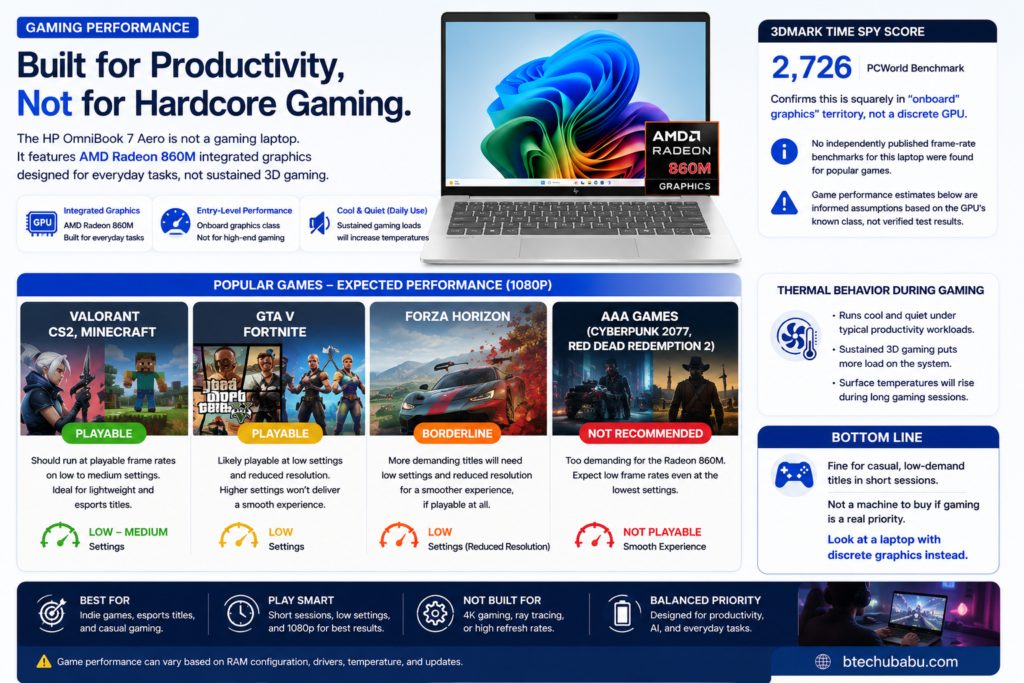
Thermal behavior during gaming: The Aero runs cool and quiet under typical productivity loads, but sustained 3D workloads are a different story see the Heat and Noise section below for details on surface temperatures under sustained load.
Bottom line on gaming: Fine for casual, low-demand titles in short sessions. Not a machine to buy if gaming is a real priority, look at a laptop with discrete graphics instead.
6. Battery Life
This is the most debated aspect of the OmniBook 7 Aero, and the numbers genuinely conflict depending on the source, so it’s worth laying them out plainly rather than picking the most flattering figure.
HP’s official claims: Up to 12 hours 15 minutes of battery life for general use, and up to 15 hours 45 minutes for video playback.
Independent lab testing: PCWorld’s controlled video-loop benchmark (a 4K video played on repeat at 250 nits brightness with airplane mode enabled) measured 632 minutes almost exactly 10.5 hours before the laptop suspended itself. PCWorld notes this is a strong result for a laptop with such a small battery, but well behind laptops (including Intel Lunar Lake and Qualcomm Snapdragon-based machines) with larger batteries.
Real-world mixed-use testing: Reports here vary more widely. XDA Developers reported averaging 9.5–12 hours in general use. Techaeris reported an average of around 9.5 hours. A separate review reported only 7–8 hours of mixed use, describing endurance as “merely average” and noting it lags behind machines like the MacBook Air M3 and Lenovo Yoga Slim 7i.
The common thread across every source: the 43Wh battery is genuinely small for this class of laptop, and it’s the single component most reviewers point to as a compromise made in service of the sub-2.2-pound weight target. AMD’s Ryzen AI chips, while strong on raw performance, are also not as power-efficient as Qualcomm’s Snapdragon X or Intel’s most efficient Lunar Lake chips, a trade-off PCWorld specifically called out as the main reason for weaker battery results relative to CPU performance.
Practical takeaway: If all-day battery life without a charger is your top priority, look closely at Snapdragon-powered or Lunar Lake-powered ultralights instead. If you can tolerate carrying a charger and topping up during the day, the Aero’s real-world 8–12 hour range (depending on workload and settings) is workable for most single-day use cases.
Charging
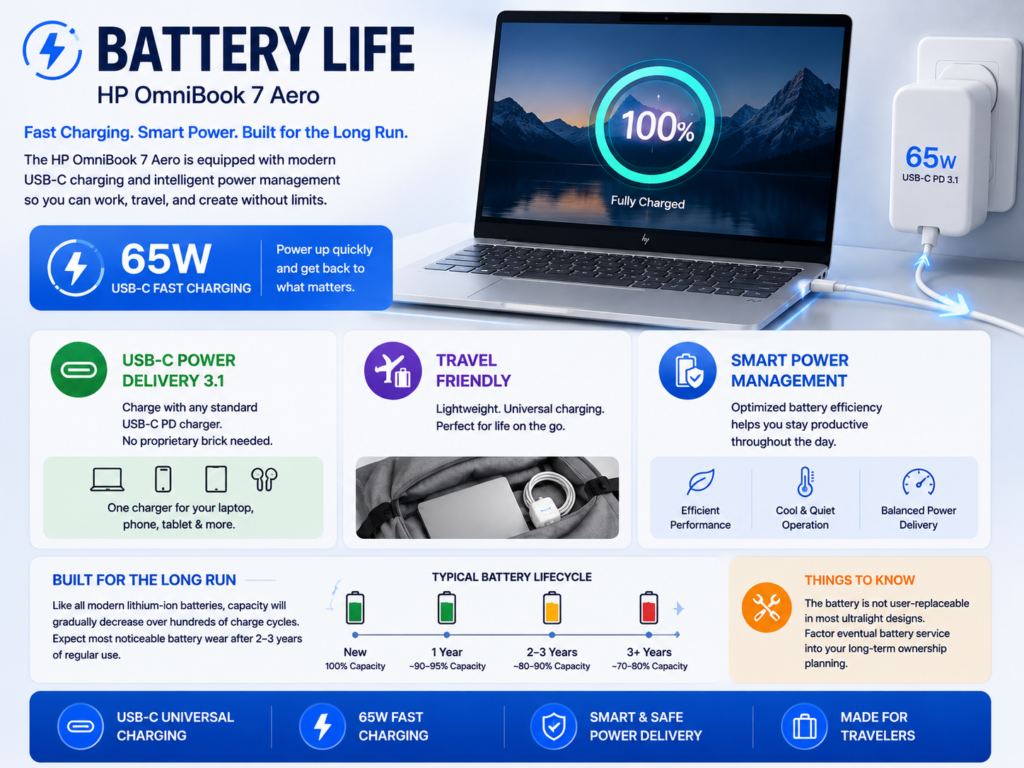
- Charging speed: 65W USB-C fast charging.
- USB-C charging: Uses Power Delivery 3.1, meaning you can charge with a standard USB-C cable and a compatible charger rather than needing a proprietary brick useful for travelers who want to consolidate chargers across devices.
- Battery longevity / expected lifespan: No independently verified long-term battery degradation data was available for this review. As with most modern lithium-ion laptop batteries, expect gradual capacity loss over hundreds of charge cycles, typically most noticeable after 2–3 years of regular use. Because the battery is not user-replaceable in most ultralight designs of this type, factor eventual battery service into your long-term ownership calculus (see Upgradeability and Repairability, below).
Related Laptop Buying Guides
Explore more laptop buying guides, comparisons, and expert recommendations.
7. Keyboard and Trackpad
Typing experience: Consistently praised across reviews as one of the stronger keyboards in the ultralight category. Key travel is generous for a laptop this thin, and feedback is described as crisp and satisfying rather than mushy, a real accomplishment given how much HP had to compress the chassis to hit its weight target.
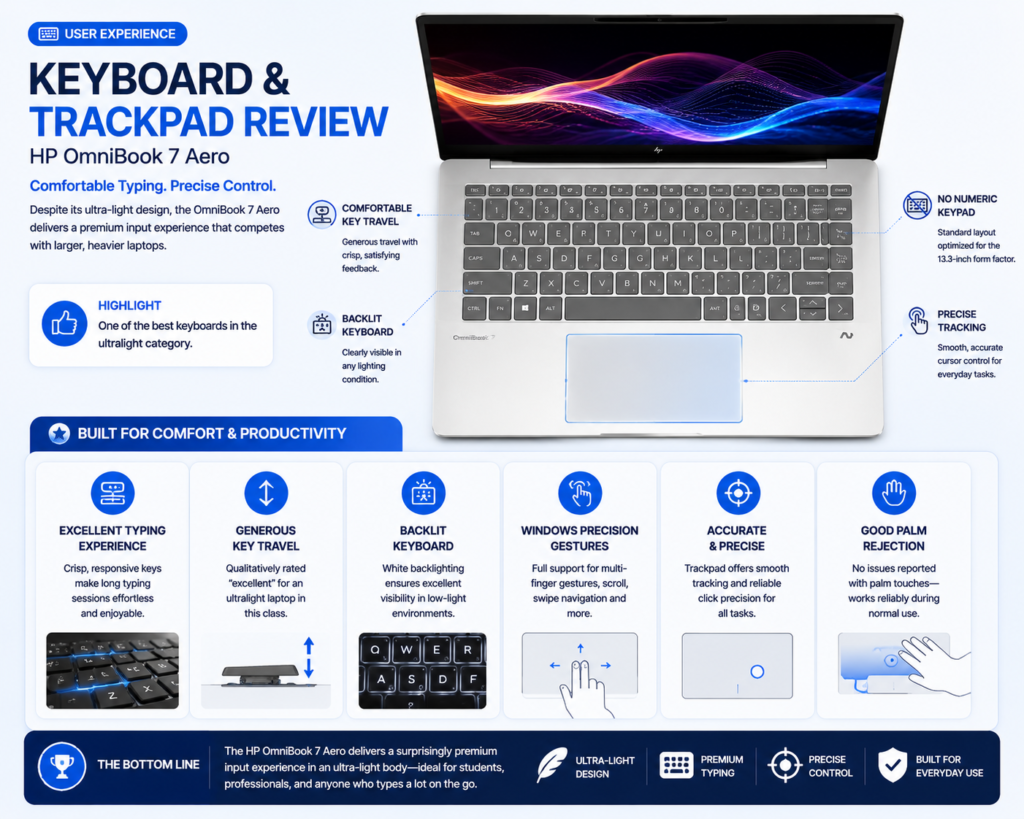
Key travel: Not independently measured in millimeters in the sources reviewed for this article, but consistently described in qualitative terms as “excellent” for the category.
Backlighting: Presently the keyboard is backlit, a baseline expectation at this price point that the Aero meets.
Layout: Standard chiclet layout; no numeric keypad, which is expected given the 13.3-inch chassis size.
Precision: Trackpad tracking and click precision are described as serviceable and accurate for everyday cursor and gesture work.
Gesture support: Standard Windows Precision touchpad gestures (multi-finger scroll, swipe navigation) are supported, consistent with modern Windows laptop trackpads.
Palm rejection: No specific complaints about palm rejection were noted in available reviews, suggesting it performs adequately, though this wasn’t singled out for detailed testing in the sources available.
The one recurring critique is that the trackpad uses a traditional mechanical click mechanism rather than the smoother haptic (force-sensor-based) trackpads found on premium rivals, giving it a slightly “clunkier” feel by comparison. This is a fair trade-off for the price and weight class, but a noticeable one if you’re used to a MacBook or a Dell XPS.
8. Connectivity and Ports
Here the Aero’s portability trade-offs become most apparent. Reported port configurations vary slightly depending on the source and exact SKU, but the consistent picture is:
HP OmniBook 7 Aero Ports & Connectivity
Complete overview of available ports, wireless connectivity, and missing features.
| Feature | Details |
|---|---|
| 🔌 USB-A | Yes. Multiple USB-A ports are available with different speed variants depending on configuration. |
| ⚡ USB-C | Yes. Multiple USB-C ports are available with USB-C Power Delivery charging support. |
| 🚫 Thunderbolt / USB4 | Not available on the reviewed configuration. This is a limitation compared with some competitors. |
| 🖥️ HDMI | Yes. HDMI 2.1 supports external displays and projectors. |
| 🎧 Audio Jack | Yes. Includes a 3.5mm headphone and microphone combo jack. |
| 💾 SD Card Reader | Not available. No microSD or full-size SD card slot included. |
| 🌐 Ethernet | Not available. Wired networking requires a USB adapter. |
| 📶 Wi-Fi | Supports Wi-Fi 6. Some configurations do not include Wi-Fi 6E or Wi-Fi 7. |
| 🔗 Bluetooth | Bluetooth 5.4 support included for modern wireless accessories. |
Who needs adapters: Photographers and videographers who rely on SD cards for camera transfers will need a dongle or card reader. Anyone needing a wired Ethernet connection for reliable networking (common in some corporate or conference environments) will need a USB adapter. And anyone who owns Thunderbolt-based peripherals (high-speed external drives, eGPU enclosures, certain docking stations) should check compatibility carefully, since the Aero’s USB-C ports may not deliver Thunderbolt-level bandwidth or the full range of Thunderbolt device support.
It’s also worth noting that HP’s broader OmniBook 7 marketing materials describe Thunderbolt 4 support on other models in the OmniBook 7 family. This appears to be a distinction specific to the Aero variant’s port configuration, not a blanket statement about every OmniBook 7 laptop, so don’t assume Thunderbolt support carries across the whole lineup.
9. Audio and Webcam
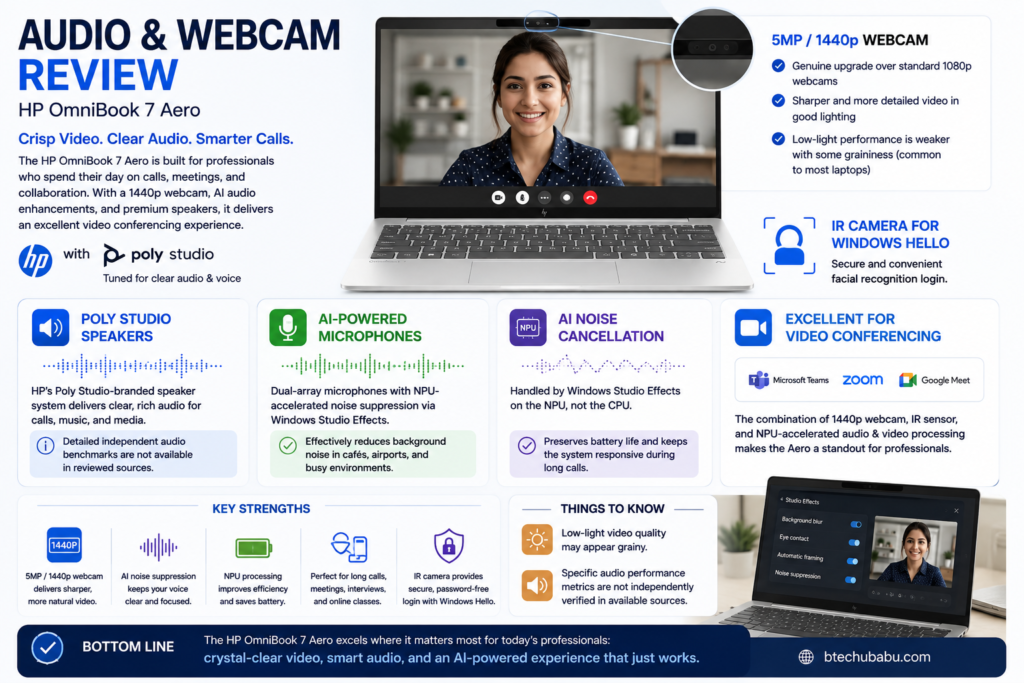
Speakers: HP’s Poly Studio-branded speaker system is used across the OmniBook 7 Aero. Detailed independent audio-quality benchmarks (frequency response, maximum volume testing) were not found in the sources reviewed for this article, so specific audio performance claims beyond the branding are not independently verified here.
Microphones: Paired with NPU-accelerated noise suppression via Windows Studio Effects, which multiple reviewers highlighted as effective at cutting background noise during calls in places like cafés and airports.
Webcam quality: The 5MP/1440p webcam is a genuine upgrade over the 1080p standard still common on competing laptops, delivering noticeably sharper video in good lighting. Low-light performance is weaker, with some graininess reported, which is a limitation common to most laptop webcams rather than unique to the Aero.
AI noise cancellation: Handled through Windows Studio Effects, running on the NPU rather than the CPU, which helps preserve battery life and system responsiveness during calls.
Video conferencing quality overall: This is a genuine strength of the machine. Between the higher-resolution webcam, the IR sensor for secure login, and the NPU-accelerated background and audio processing, the Aero is well-suited to professionals who spend a significant part of their day on video calls.
10. Software Experience
Windows version: Ships with Windows 11, configured as a Copilot+ PC.
HP software: HP bundles its usual suite of first-party utilities (HP Smart for printer and device management, along with the Poly Camera Pro / Poly Studio apps for webcam and audio tuning). Reviewers describe these tools as genuinely useful for professionals doing frequent video calls, though casual users may find some of the granular camera controls unnecessary.
AI software: Beyond Windows’ native Copilot+ stack, HP layers its own AI-assisted features for camera and audio, as noted above.
Security: The device includes Windows Hello via the IR-equipped webcam for biometric login. As noted earlier, there is no fingerprint reader as an alternative biometric option, which is a gap worth considering if you have privacy or ergonomic reasons to prefer fingerprint unlock.
Updates: Standard Windows Update cadence applies; no OmniBook-specific update behavior was flagged as unusual in the sources reviewed.
Bloatware: No sources reviewed for this article singled out unusual amounts of pre-installed bloatware beyond HP’s standard first-party utility suite, which is generally less aggressive than some competing OEMs’ bundled software.
11. Heat and Noise
This is another area where test results diverge somewhat depending on workload and testing methodology, so both perspectives are worth including.
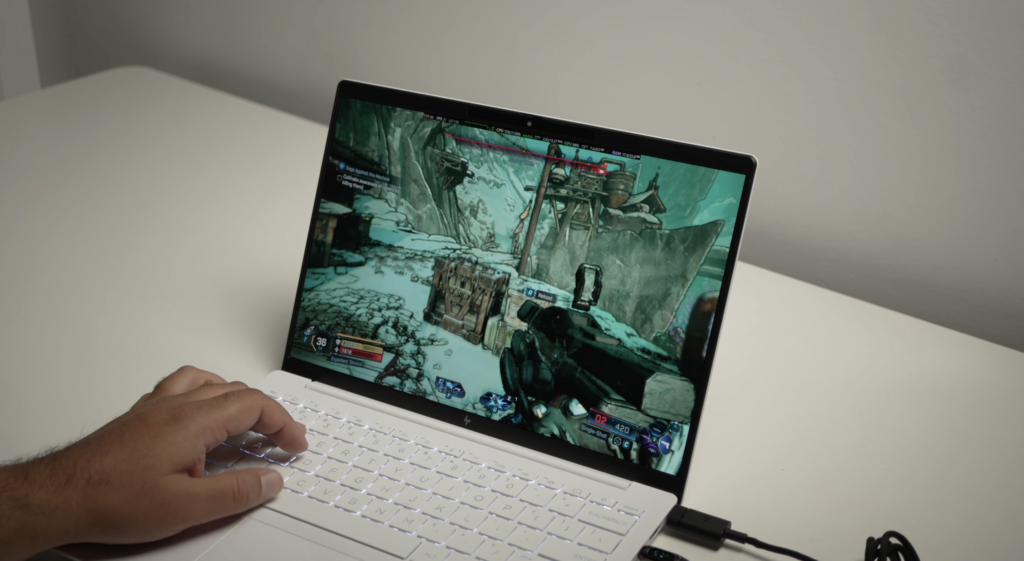
Under typical productivity workloads, PCWorld’s testing found the Aero to run cool and quiet. This is a genuinely positive result given how thin the chassis is, and one that reviewers attributed partly to HP’s conservative power-limit tuning (the 32W sustained power limit noted earlier).
Under sustained heavier workloads, a separate review reported surface temperatures on the keyboard deck reaching up to 46°C (about 115°F), describing this as warmer than ideal, and attributing it to HP prioritizing fan quietness over aggressive cooling. That same review noted the trade-off explicitly: HP tuned the fans to stay quiet, which keeps the laptop hotter under load than some competitors that run louder fans to keep temperatures down.
Fan behavior: Generally described as quiet during normal use, ramping up only under sustained load.
Long workloads / sustained performance: Given the modest 32W sustained power limit reported for the CPU, expect some thermal throttling during extended demanding tasks (long video exports, sustained compilation jobs, extended gaming sessions) rather than sustained maximum-clock performance. This is consistent with the Aero’s overall design philosophy: prioritize thinness, weight, and quiet operation over maximum sustained throughput.
12. Upgradeability and Repairability
This is a straightforward section with a clear answer: don’t buy the OmniBook 7 Aero expecting to upgrade it later.
RAM: Soldered directly to the motherboard and not upgradeable after purchase. Whatever RAM configuration you buy (16GB or 32GB, depending on SKU) is what you’ll have for the life of the device. Given this, it’s worth choosing your RAM configuration carefully at purchase time rather than planning to upgrade later.
SSD: Storage details on physical accessibility (whether the SSD is a replaceable M.2 module or soldered) were not confirmed in the sources reviewed for this article. Given the ultra-thin chassis design common to this laptop category, don’t assume easy user-serviceable storage without confirming directly with HP or a teardown report for your specific configuration.
Battery: As with most ultralight laptops in this class, the battery is very likely not designed for casual user replacement, though this specific detail wasn’t independently confirmed in available teardown sources. Plan on professional service (through HP or an authorized repair provider) for eventual battery replacement.
Repair difficulty: Ultra-light magnesium-aluminum chassis designs of this type are generally more difficult to service than thicker, heavier laptops, simply because there’s less internal space and the components are packed more tightly. No independent teardown or iFixit-style repairability score was found in the sources reviewed for this article.
Long-term ownership: Given the non-upgradeable RAM and the likely difficulty of DIY repairs, this is a laptop best suited to buyers who plan to configure it correctly at purchase and treat it as a 3-to-5-year device rather than one they’ll upgrade piecemeal over time.
13. Who Should Buy It?
Who Should Buy the HP OmniBook 7 Aero?
See whether the HP OmniBook 7 Aero matches your work, studies, or travel needs.
Students
An excellent choice for students who carry their laptop between classes every day. Its lightweight design significantly reduces backpack weight, making it far more comfortable for campus life than most traditional laptops.
Developers
Great for programming, web development, coding projects, and multitasking thanks to the Ryzen AI processor. However, developers relying on several heavy virtual machines or Docker containers may find the 32GB RAM limit restrictive.
Office Workers
One of the best laptops for office productivity. Microsoft Office, web applications, email, spreadsheets, presentations, and multitasking all run smoothly with plenty of performance to spare.
Remote Employees
A strong option for hybrid and remote work thanks to its sharp webcam, quality microphones, AI-powered Windows Studio Effects, and reliable performance during video meetings.
Content Creators
Suitable for photo editing, blogging, writing, and light creative work. Professionals working with 4K video, 3D rendering, motion graphics, or demanding Adobe workflows should consider laptops with dedicated graphics.
Travelers
Perhaps the Aero’s strongest audience. At around 1kg, it is exceptionally portable while offering HDMI for presentations and USB-C charging that reduces the number of chargers needed on trips.
Business Professionals
Ideal for professionals who travel frequently. The only compromises are the lack of a fingerprint reader and Thunderbolt support, which may matter in some enterprise environments.
Who Should Avoid It
Who Should Skip the HP OmniBook 7 Aero?
If any of these describe your needs, another laptop may be a better fit.
Gamers
The integrated Radeon 860M graphics are not designed for demanding AAA gaming or serious GPU-intensive workloads.
Creative Professionals
Not ideal for professional photo editing, advanced video production, color grading, or GPU-accelerated creative software.
Thunderbolt Users
Thunderbolt 4 and USB4 are not available, making it unsuitable for users with high-speed docks or storage devices.
Dongle-Free Users
No SD card slot or Ethernet port means you’ll need adapters for wired networking and memory cards.
Battery-First Buyers
If maximum battery life is your top priority, Snapdragon X Elite or Intel Lunar Lake laptops generally last longer.
14. Competitor Comparison
HP OmniBook 7 Aero vs Premium Ultrabooks
Compare performance, weight, AI features, battery, display and overall value.
On price and value: Reported starting prices for the OmniBook 7 Aero range from roughly ₹88,888 for base configurations for higher-spec review units (32GB RAM/1TB storage). That puts it in a competitive range against the Dell XPS 13, base MacBook Air configurations, and premium Zenbook models, though exact pricing varies by region, retailer, and ongoing promotions check current listings before comparing directly.
15. Pros and Cons
HP OmniBook 7 Aero Strengths and Weaknesses
A balanced view of what makes the HP OmniBook 7 Aero impressive and where it compromises.
16. Final Verdict
The HP OmniBook 7 Aero is a laptop built around a clear, well-executed thesis: make a Windows ultraportable as light as physically reasonable, without gutting the processor to hit that number. HP largely succeeds at that goal. At under 2.2 pounds, it undercuts even Apple’s MacBook Air while still packing an 8-core, 16-thread AMD processor and a full Copilot+ AI feature set, wrapped in a chassis that feels genuinely premium rather than corner-cut.
The compromise required to hit that weight target is battery life, and it’s a real one not a marketing footnote. HP’s official battery claims (12+ hours general use, nearly 16 hours of video playback) are notably more optimistic than what independent lab and real-world testing has measured, which ranges roughly from 7 to 12 hours depending on workload and testing methodology. If all-day battery life without a charger nearby is non-negotiable for you, a Snapdragon-based or Intel Lunar Lake-based competitor is likely to serve you better.
AI capabilities are a genuine strength: the NPU clears Microsoft’s Copilot+ bar comfortably, and the on-device features particularly around video calling are practical rather than gimmicky.
Display quality is solid but configuration-dependent, and buyers who care about exact resolution and color performance should verify their specific SKU rather than assuming the specs of any single review unit apply universally.
Value for money, at a starting price in the ₹88,888 range depending on configuration, is competitive with not dramatically better or worse than similarly specced rivals from Dell, Lenovo, Asus, and Apple. The Aero doesn’t win on price; it wins on weight.
Best use cases: frequent travelers, students who carry their laptop daily, and professionals whose work is dominated by documents, browsers, and video calls rather than gaming or GPU-intensive creative work.
Final recommendation: If minimizing carrying weight is one of your top two or three priorities in a laptop purchase, the OmniBook 7 Aero deserves serious consideration. Few Windows laptops in its price range get this light while still feeling like a complete, capable machine. If battery life, Thunderbolt connectivity, or graphics performance rank higher on your list, there are better-suited alternatives covered in the comparison table above.
HP OmniBook 7 Aero Final Assessment
A quick overview of who should buy it, where it excels, and the compromises behind its ultra-light design.
Students, road-warrior business travelers, and professionals whose daily workload is dominated by browsers, office apps, and video calls. Ideal for people who value carrying comfort and lightweight design more than raw graphics performance.
Exceptional portability, premium-feeling chassis, comfortable keyboard, strong multi-threaded CPU performance, and a complete Copilot+ AI feature suite.
The 43Wh battery falls short of HP’s marketing claims in independent testing. Missing features include Thunderbolt 4, USB4, microSD slot, fingerprint reader, and dedicated graphics performance.
For its core audience — users who prioritize portability above nearly everything else — yes. The main recommendation is to plan on carrying a charger because battery endurance is the biggest compromise.
The HP OmniBook 7 Aero is a specialist ultra-portable laptop. It delivers excellent mobility, premium design, and AI features, making it a strong choice for students, travelers, and professionals who value weight savings over maximum performance.
HP OmniBook 7 Aero FAQ
Find answers to the most common questions about the HP OmniBook 7 Aero, including performance, battery life, gaming, AI features, upgrades, and more.